
Browse the Help Center
Browse files with Explorer and folder templates
Browse project files as folders with Explorer, start new projects with a predefined structure, and find the Photos tab.
1 min read
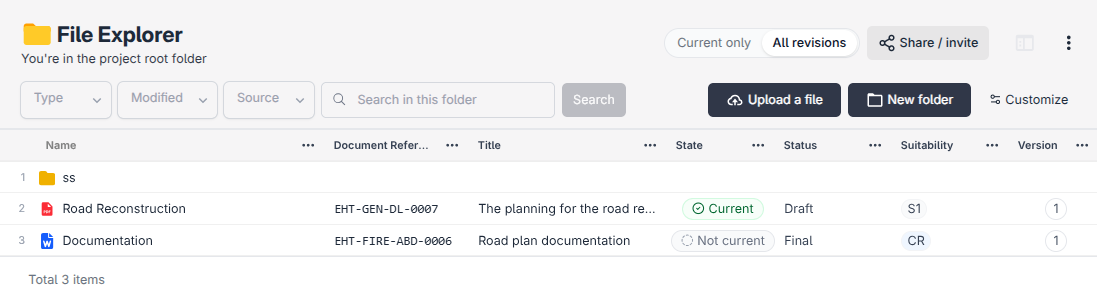
The register is a list; Explorer is a folder tree. If you think in folders, Explorer shows the same project files the way a file manager would.
Open Explorer
- 1
Open your project, then go to Files.
- 2
Click Explorer to browse the folder tree. Open folders to drill down, and click a file to open its document details.
Don't see Explorer?
Your project admin turns this on under Settings, then Documents.
Folder templates
Folder templates are predefined folder structures for new projects. Set one up the way your company organises a job, and every project that starts from it gets the same tree from day one. You will find them under Files, alongside the register.
Photos live here too
The Photos tab also lives under Files. Site photos get their own gallery view instead of being buried between drawings. See Project photos for the full guide.
Tip
Explorer and the register show the same documents. Browse with Explorer, but when you need status, revision, or suitability at a glance, the register is the stronger view.
See it on the platform
Document controlWas this page helpful?
Need help? Contact support.
See what shipped in the changelog.
Questions about pricing? Talk to sales.
Something down? Check the platform status.
Found a bug in the product? Report an issue.
Missing something? Request a feature.