
Browse the Help Center
Update a document's status
Change the status of one document from its details page, or update many at once with the bulk actions bar in the register.
1 min read
Statuses only help when they are kept up to date. Updating one document takes seconds, and the register can update a whole selection in one go.
Update one document
- 1
Open your project, then Files, then Document register, and click the document.
- 2
On the details page, click the status field and pick the new status. The change is saved and written to the change log.
Prefer a full page? The Update status page gives you the same change with room to review the document details as you go.
Update many at once
- 1
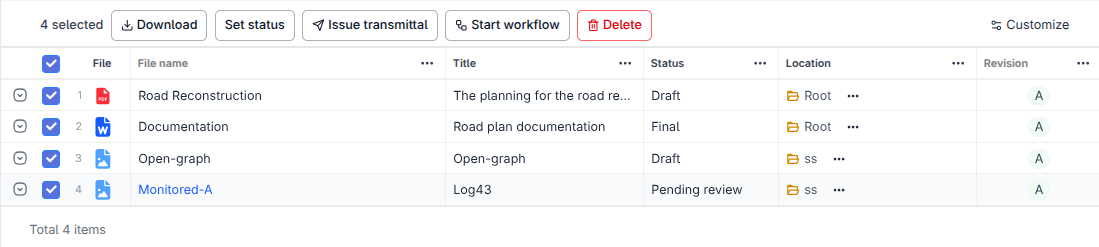
In the register, tick the checkbox on each row you want to change. The bulk actions bar appears.
- 2
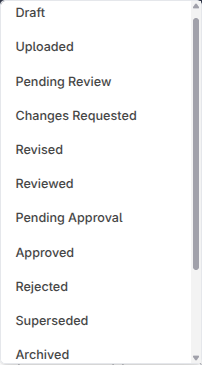
Click Update status, pick the new status, and confirm. Every selected document moves together.
Who can change what
What you can set depends on your role and permissions. Some statuses, like Approved, are normally set by review actions rather than by hand.
See it on the platform
Document controlWas this page helpful?
Need help? Contact support.
See what shipped in the changelog.
Questions about pricing? Talk to sales.
Something down? Check the platform status.
Found a bug in the product? Report an issue.
Missing something? Request a feature.