
Browse the Help Center
Invite people to your workspace
Add teammates with Quick invite, bring in a whole list with Bulk invite, and add members to projects.
1 min read
Everyone who works with documents should be in the workspace: that is what keeps the record complete. Invites take seconds.
Quick invite
- 1
Click Invite people at the bottom of the sidebar.

- 2
On the Quick invite tab, enter one or more email addresses and pick a role for them.
- 3
Send. Each person gets an email with a link to join your workspace.
Bulk invite
Adding a whole team? Switch to the Bulk invite tab and paste a list with an email and role for each person. fluxems validates the list before anything is sent.
Adding people to a project
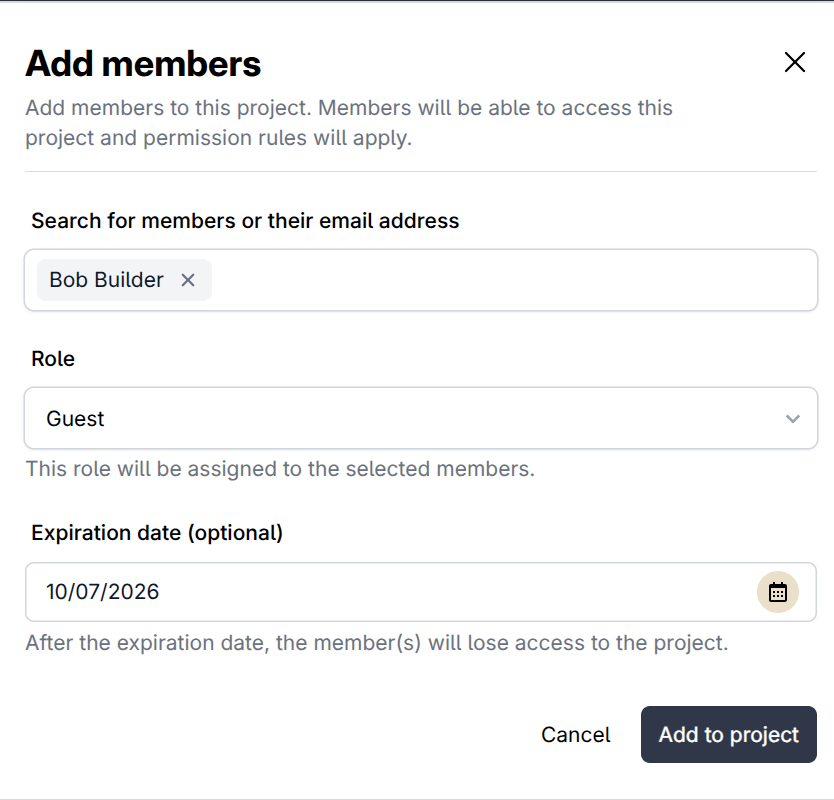
Workspace membership and project membership are separate. Inside a project, use Manage, then Members to add people to that project, or click Invite people while you are in the project.
Roles control what people can do
A role decides what someone can see and change. Administrators manage roles under Security and permissions.
Was this page helpful?
Need help? Contact support.
See what shipped in the changelog.
Questions about pricing? Talk to sales.
Something down? Check the platform status.
Found a bug in the product? Report an issue.
Missing something? Request a feature.